How to optimise your Framer site for SEO and AEO
Robin Louw
|
Framer sites are SEO-optimised out of the box and include features like sitemap.xml and robots.txt automatically. However, it's possible to optimise your Framer sites to be above average. I will go over best practices to ensure your Framer site reaches its full potential for SEO and AEO.
What is SEO and why it matters
Search Engine Optimisation (SEO) is the practice of optimising websites to rank higher in search engine results organically. When referring to a search engine, this would mostly be referring to Google, but the practices remain generally the same.
With the advent of Artificial Intelligence (AI), new related terms such as Generative Engine Optimisation (GEO) and Answer Engine Optimisation (AEO) have emerged. However, the practices have not fundamentally changed.
SEO is important if you plan for your site to rank higher organically by people searching for a service, business, or brand rather than through paid acquisition.
SEO (and AEO) best practices
I will be covering SEO best practices aimed specifically at Framer sites. However, these are general best practices that can be applied to any site.
Meta title and description
This refers to the title and description of a site or specific page of a site that appears in search results. This can easily be updated within Framer under site settings. Be sure to set a unique title for each page and that CMS pages render titles and descriptions dynamically. If you purchased a template and hit publish without updating these values, these will be indexed by search engines.
To prevent Google from automatically replacing your meta description with on-page text, use the Google Bot > Skip accessibility tag for the text block that should not be indexed.
Once published, you can use the Meta check Framer tool to view the results.
URL paths
Ensure your URLs or URL paths use - instead of _.
For example, use /about-us instead of /about_us.
Semantic text and elements
Pages should contain at least one H1 tag for the main title. For example, tag the main heading as H1, then the secondary or sub-heading as H2, H3 for the heading below, and so on.
Also, add semantic tags for headers, sections, and images. This is good practice for search engines as well as for accessibility.
ALT text for images
Add descriptive ALT text for images that describes the image and be sure it ends with punctuation. This is also good for accessibility. Decorative image elements can be ignored.
Video poster or thumbnail
Upload a poster or thumbnail image to video components that support it. This acts as a preview for the video on the site as well as search result previews.
Structured Data or Rich Results
Framer supports adding structured data using JSON-LD, which is important for SEO as it helps search engines and AI agents better understand your page content. This requires adding custom code, which is only supported on paid plans. However, use custom code strategically, as it can slow down your site.
Redirects
Redirects help prevent traffic loss caused by URL changes or site migrations. By using Redirects, you should be able to maintain search ranking. Redirects are only currently available on Pro plan and above.
Google Analytics
Framer has GDPR-compliant analytics built in. However, it's easy to add Google Analytics by simply adding your tracking ID under Site settings. Adding third-party analytics may require privacy law compliance depending on the country.
Google Search Console
Although not a requirement to be listed on Google, Google Search Console (GSC) is a tool to gain valuable insights on your site's performance over time.
Choosing URL prefix and meta tag for verification is the simplest way to get started.
Framer automatically generates an XML sitemap which can be submitted to GSC by adding ‘/sitemap.xml' to the end of the website homepage.
Backlinks
Have external sites link to your site to improve your site's authority. However, low-quality links are to be avoided. Sites with high authority and relevance are recommended.
Add llms.txt to your site (optional)
An llms.txt file can help large language models (LLMs) or AI agents understand and discover your site. Currently, it's only a proposal and the specification could change. However, Framer supports adding an llms.txt file using the well-known files upload feature. This feature is available on the Pro plan and above.
SEO plugins for Framer sites
Now that you know the best practices for good SEO, a lot of the manual work can be time-consuming. Luckily, there are Framer plugins to help speed up your workflow for SEO and non-SEO-related tasks. Searching the Framer marketplace using the keyword 'SEO' can return a multitude of results; below is a list of some popular plugins.
Search Console (Free)
Track clicks, impressions, and top search queries with real-time updates directly on Framer’s canvas.
Redirect Sync (Free)
Quickly import and export redirects using a CSV file.
LLM Text Generator (Free)
Generate a standards-compliant llms.txt file for your Framer website. Automatically extract pages and CMS collections, preview and edit content, and download instantly.
Semflow (Paid)
Audit your site, see your SEO score, optimise your pages, find keywords, track rankings, and improve page performance.
How to add Structured Data through JSON-LD
Adding structured data requires adding custom code to a page or site. As custom code can slow down a site, it is recommended to be strategic with the Schema type you plan to use. For example, an FAQ schema with the top three questions and answers for the FAQ page. Framer also supports adding Schema to CMS pages, for dynamically generated and unique structured data.
You can generate Structured Data through JSON-LD easily by prompting an AI model. For example, here is a prompt to generate an article schema for this blog using Gemini:
Help me generate the Schema Markup for the blog CMS articles of my Framer site. Do not include "Publisher" or the "Author", but do include the "Description" which uses the field "Snippet", "datePublished" uses the field "Date" and "dateModified" uses the field "Updated". All fields start with a capital letter. Also, include "| json" within each variable except the URL slug. The URL slug for CMS pages is "https://designchillout.co/resources/{{slug}}”
This is just an example but you can use the exact prompt; however, you will need to match the actual fields from your Framer CMS and replace the domain and slug with your own.
Once the schema has been generated, add it to the Framer site:
Go to site settings
Choose to add script
Give it a name, for example 'Article Schema'
Choose Start of <head> for placement
Under page, select the page, for example '/resources/:slug'
Choose run once
Paste the code in the code block
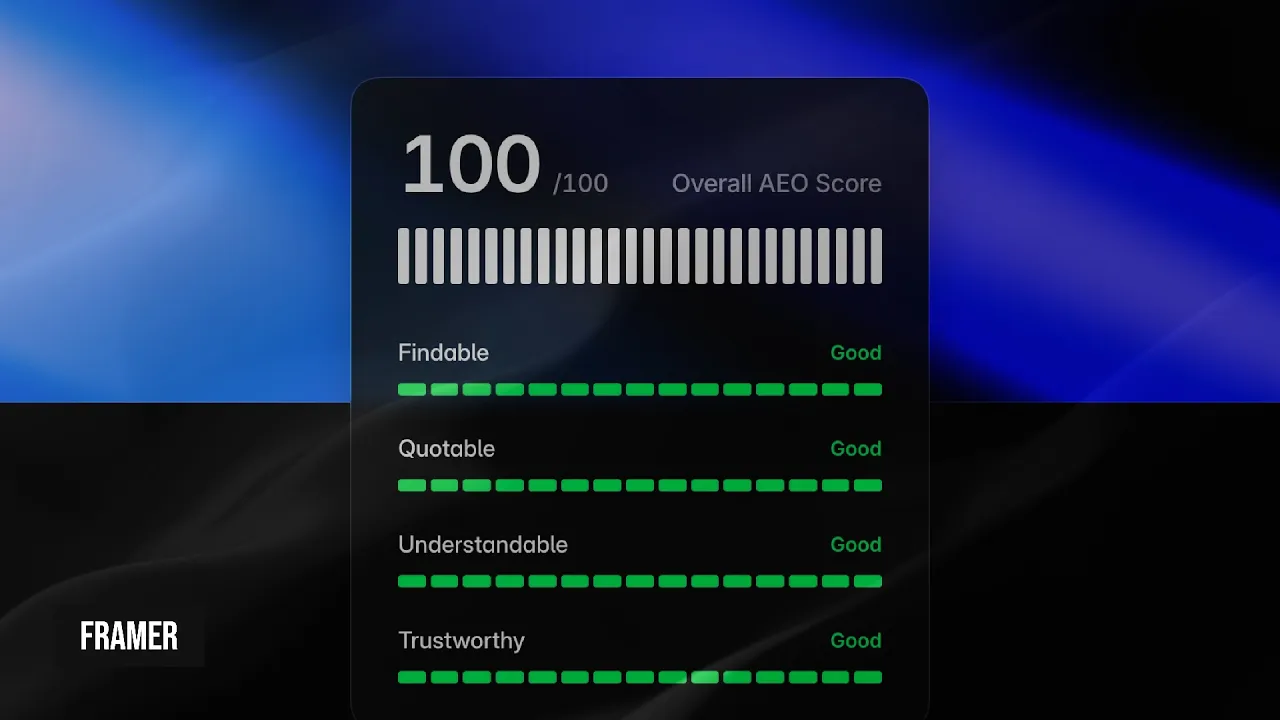
When you have published your site, you can validate your structured data using Google’s Rich Results Test as well as Framer's AEO tool.
Framer publish checklist
Before you connect a live domain and hit “Publish,” it’s important to run through a final pre-launch checklist to make sure your site looks professional, works perfectly across devices, and meets accessibility and legal standards.
View and remix the checklist for free here and read the detailed guide here.
Conclusion
SEO once required a level of expertise or specialisation. However, with Framer sites, they are already optimised and require very minimal additional work to ensure that your site is fully optimised for organic ranking, allowing you or your team to focus on the content and less on the technical requirements of SEO.

Thanks for visiting Design Chillout! While you’re here, don’t forget to checkout the designer toolkit or grab something from the cooler box!
Affiliate Disclaimer:
This page contains affiliate links. Site content is supported by awesome visitors like you who buy after clicking on a link, at no extra cost to you.
AI disclaimer:
This article contains original content. However, AI may have been used to generate content from existing sources, or to correct the grammar, spelling, and formatting.
Advertisement